
Mazes have been a paper-and-pencil classroom staple for generations, but building one from scratch used to mean either drawing it by hand or wrestling with clunky design software. Oh My Dots’ free Maze Generator turns that into a two-minute job — no design skills, no account, and no cost. You can build a classic maze from a preset shape, or go further and turn any photo into a “picture maze” that reveals the image once it’s solved.
What makes Oh My Dots’ Maze Generator different
Most free maze makers online only let you generate a plain rectangular grid. Oh My Dots’ tool does that too, but its signature feature is the picture maze: upload any image, and the maze is built in the shape of that picture.
It’s completely free to use and doesn’t require creating an account.
Step 1: Choose your starting point — a photo or a shape
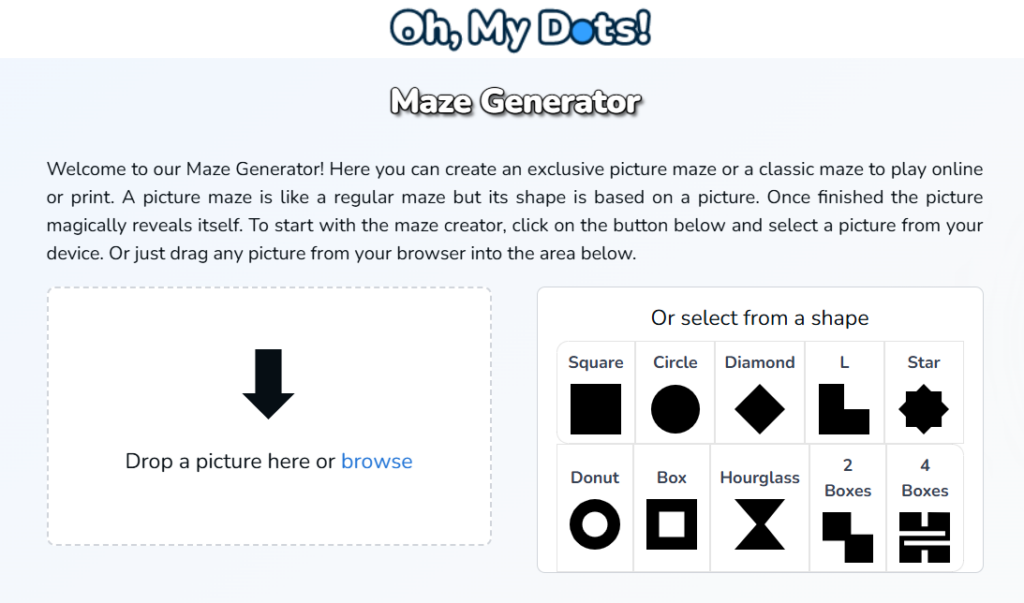
Head to the Maze Generator at ohmydots.com/creator-maze.html and you’ll see two options side by side:
- Upload a picture. Drag any image into the drop zone, or click browse to select one from your device. You’ll trace the maze’s outer shape around it yourself in the next step, and solving the maze reveals the picture underneath.
- Pick a preset shape. If you don’t have an image ready, choose from ten built-in shapes: Square, Circle, Diamond, L, Star, Donut, Box, Hourglass, 2 Boxes, and 4 Boxes.
The two routes diverge from here. Uploading a photo adds one extra step, tracing the shape, while picking a preset shape skips straight to the difficulty and preview screen. A preset shape is faster if you just want a classic maze to print for a worksheet; a photo is the move if you want the “reveal” effect.
Step 2: If you uploaded a photo, trace the maze shape around it
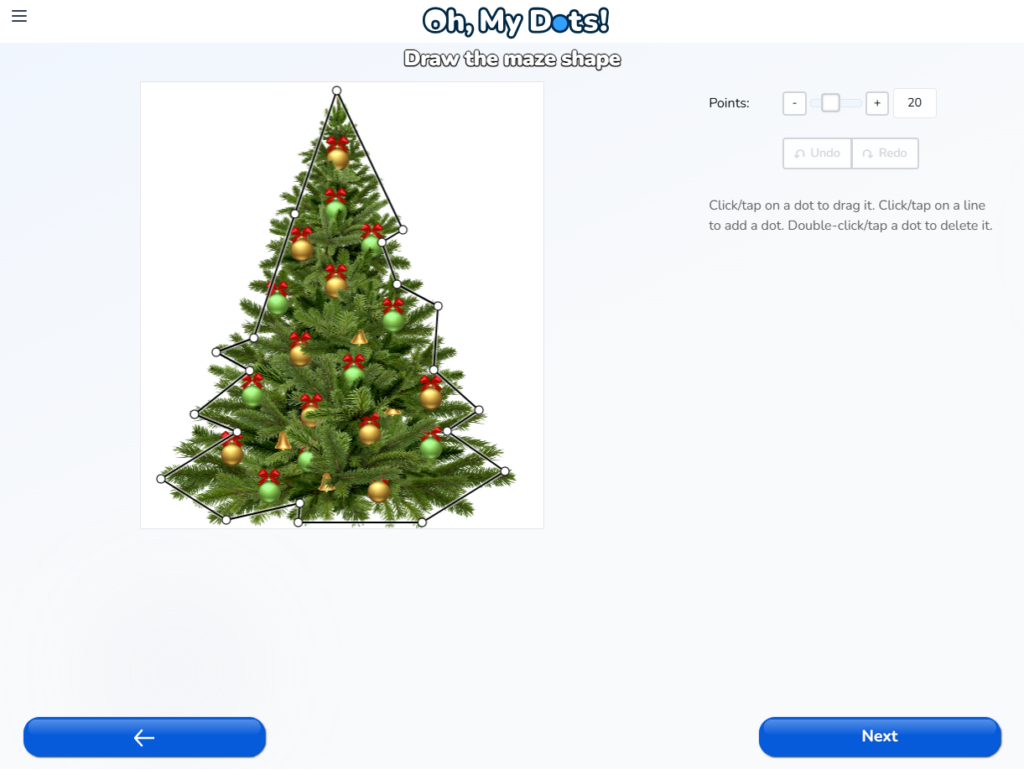
This step only appears if you uploaded your own image. You’ll land on a Draw the maze shape screen with your photo underneath a draggable outline:
- Points. Set how many points make up your outline, either with the +/− buttons or by typing a number directly (20 is the default).
- Drag any point to reshape the outline around your photo.
- Click on a line between two points to add a new point right there, for finer control around curves or details.
- Double-click a point to delete it.
- Undo and Redo to step back through your changes.
Once the outline follows your photo closely enough, click Next to move on. If you picked a preset shape instead, you won’t see this screen at all, since your outline is already set, so you’ll go straight to the difficulty and preview step below.
Step 3: Customize the difficulty and preview your maze
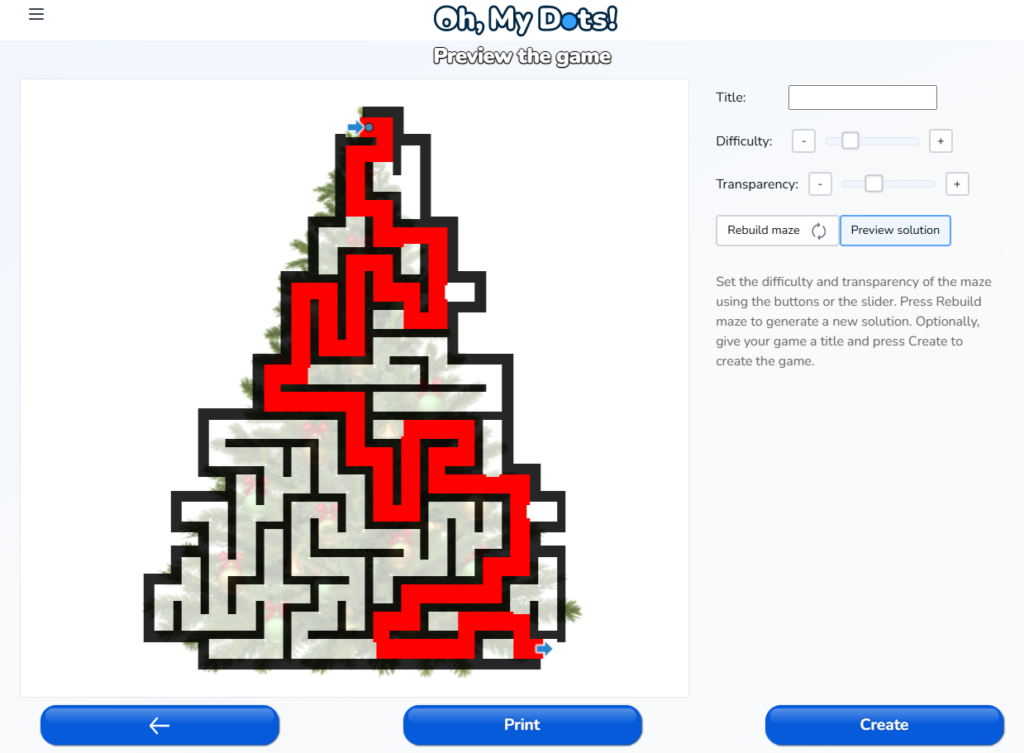
Once you’ve picked a shape or image, the generator builds a maze and drops you into a preview screen with a few controls:
- Title — an optional field to name your maze, useful if you’re going to share or print it.
- Difficulty slider — adjust with the +/− buttons or the slider itself to make the maze simpler or more winding.
- Rebuild maze — regenerates a fresh maze on the same shape without starting over.
- Preview solution — toggle this to see the solution path highlighted in red, handy for checking a maze before printing an answer key.
If you started from an uploaded photo, you’ll also see a transparency control here, letting you tune how visible the underlying image is through the maze lines.
Step 4: Print it, or create a shareable link
From the preview screen you have two paths:
Print. Click Print to get a printable version of your maze — ready for a birthday party, a classroom worksheet, or a road-trip activity page.
Create. Click Create to publish the maze and generate a shareable link. This takes you to a Share your link page with:
- A copyable link and a QR code
- One-tap sharing to WhatsApp, email, Pinterest, or Facebook
- An auto-generated cover thumbnail
- Play and solve stats — how many times it’s been played, and by how many people
- Options to delete the maze later if you change your mind
Step 5: How the maze plays
Once someone opens your maze link and hits Start, the entrance and exit are marked with blue arrows, and a draggable dot marks the current position. There are three ways to navigate:
- Click and drag the dot through the maze without hitting the walls
- Use the on-screen arrow buttons, which move the cursor automatically until the next intersection
- Click any point further along the maze — the cursor paths there on its own if the route is clear
If you get stuck, the same arrow buttons, or clicking back along your own path, move you back the way you came.
Beyond the generator: browsing ready-made mazes
If you don’t want to build one from scratch, Oh My Dots also has a library of playable maze games at ohmydots.com/games/all-maze-games that you can filter by difficulty level and tag, and play or print directly — useful for a quick activity without any setup.
A few practical use cases
Picture mazes make a novel addition to a birthday invitation or party favor — upload a photo of the guest of honor and the reveal becomes part of the fun. Teachers can generate a batch of simple, shape-based mazes as a five-minute classroom warm-up or a printable take-home worksheet, using the difficulty slider to match the grade level. And because every maze gets its own shareable link, they also work well as a quick, no-download party game or icebreaker for kids’ events.
Frequently asked questions
Is the maze generator free?
Yes — no cost and no account required to create, print, or share a maze.
Can I turn a photo into a maze?
Yes, that’s the picture maze feature — upload any image, trace an outline around it with the point editor, and the maze is built inside that shape, revealing the picture when solved.
Can I print the maze instead of sharing it online?
Yes, both the shape-based and picture-based mazes have a Print option from the preview screen.
Can I make the maze harder or easier?
Yes, use the Difficulty slider on the preview screen before creating or printing.
Ready to try it? Build your own maze now at ohmydots.com/creator-maze.html — free, no sign-up required.