

Turning a favorite photo into a puzzle is one of the most fun things you can do on Oh, my Dots!. Your dog, your kid’s first bike, that cat who never sits still. Until now, though, how good the result looked depended a lot on the photo itself: busy backgrounds and soft colors made it harder to get a clean outline, and a photo doesn’t always look like a puzzle page. So we added some AI help, in both the Connect the Dots Generator and the Coloring Page Creator.

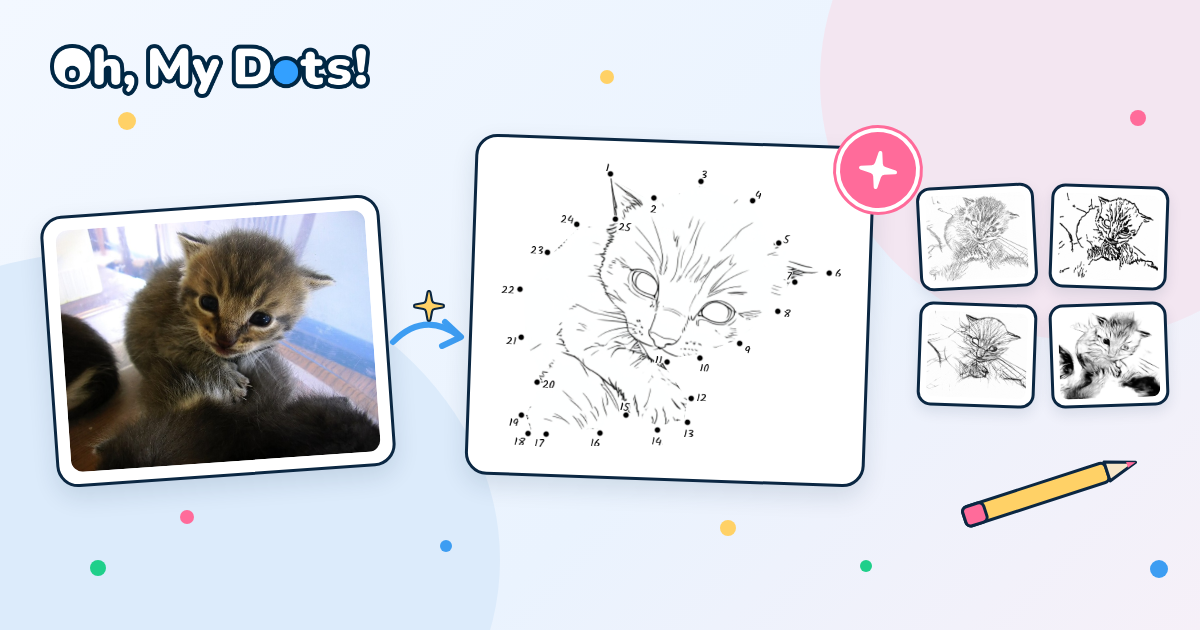
Connect the dots: let AI trace the outline
The generator traces the outline of your picture for you. Until now it did that by looking at colors, which works great for a cartoon on a plain background, but not so great for a kitten sitting on a cluttered windowsill.
Now there’s a choice. In the Draw the dots step, next to Auto trace, you’ll find two options:
- Color: the classic tracing, based on color differences. Quick, and perfect for simple pictures.
- AI: AI removes the background, finds the main subject of your photo and traces around it.

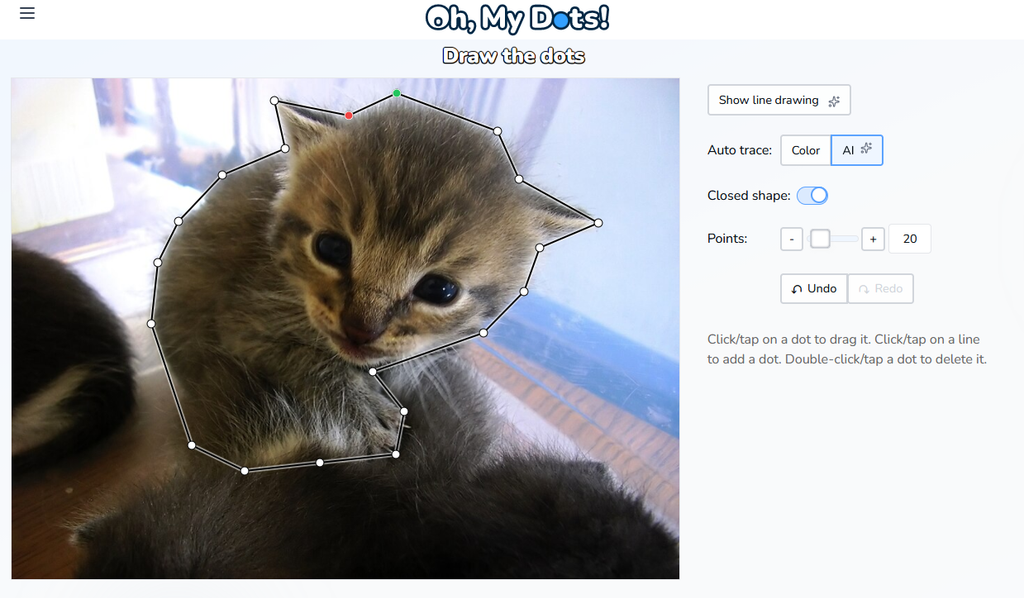
When you pick AI, the site asks for a quick confirmation, since removing the background can take a few seconds on your device. Give it a moment and you’ll get an outline that follows the shape of your pet or person, not the shapes in the background.
In our tests with a kitten photo, the color trace wandered off into the window and the edges of the picture, while the AI trace hugged the kitten’s ears, head and paws. You can still drag, add or delete dots by hand to get it just right.
Connect the dots: turn your photo into a line drawing
Want a puzzle that looks like a page from an activity book instead of a photo? When you upload a photo, the Draw the dots step now also has a Convert to line drawing button.
Click it and AI redraws your photo as black-and-white line art, right there in the editor. The dots are traced again on top of the new drawing, so take a quick look and drag any dot that needs a nudge.

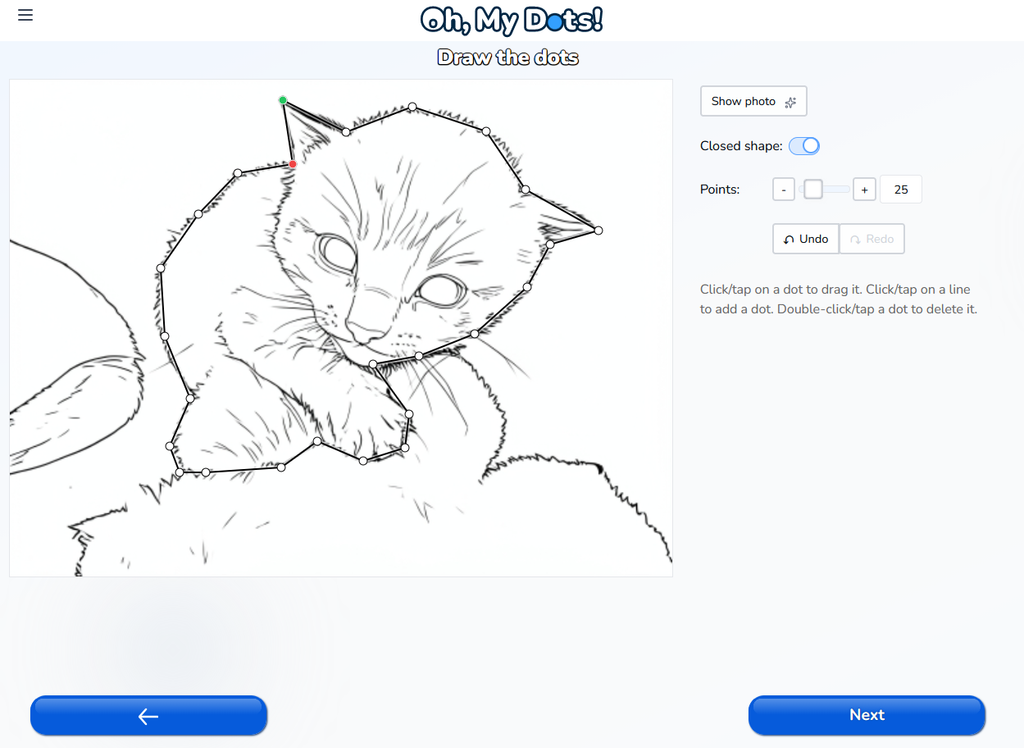
Then, in Preview the game, set Image hint to On to keep the line drawing in your puzzle. Players connect the dots on top of real line art, just like in an activity book.
Changed your mind? The same button switches between Show photo and Show line drawing, so you can compare both and keep the one you like.
The button only shows up when the picture you upload is a photo. If you upload a drawing or clip art, you already have clean lines, so there’s nothing to convert.
How to try it in the Connect the Dots Generator
- Open the Connect the Dots Generator and drop in a photo.
- Crop it if you want, then click Next.
- In Draw the dots, pick one of the new AI helpers:
- set Auto trace to AI for a clean outline around the main subject of your photo, or
- click Convert to line drawing to turn the photo into line art.
- Use Points to choose how many dots you want, and fine-tune any dot by dragging it.
- Click Next. If you converted to a line drawing, set Image hint to On to keep it in the puzzle.
- Pick numbers, letters or a custom sequence, then Create to play online or Print to get a worksheet.
Coloring pages: four new AI styles
The Coloring Page Creator already turned pictures into coloring pages with its A.I. Line Art mode. Now that mode has a Style menu with four new looks to choose from:
- Fine lines: lots of thin, delicate lines that keep details like fur and texture. Great for older kids and grown-ups who like a challenge.
- Bold outlines: thick, strong black lines that stand out on the page. Easier to color inside the lines, nice for little ones.
- Pencil: soft, hand-drawn strokes, like a quick pencil drawing.
- Sketch: a shaded, artistic sketch with darker areas, for a more dramatic page.
The original style, Line Drawing, is still there too, so you now have five ways to turn the same picture into a coloring page. Same photo, five very different pages: try a couple and print the one that fits the person who’ll be coloring it.
How to try the new coloring page styles
- Open the Coloring Page Creator and drop in a picture.
- Crop it if you want, then click Next.
- Pick A.I. Line Art as the creation mode.
- Choose a look from the Style menu: Line Drawing, Fine lines, Bold outlines, Pencil or Sketch.
- Click Print, add a title or a name header if you like, and Download your coloring page.
Give it a go
Grab a photo from your phone and see what happens. Turn it into a connect the dots in the Connect the Dots Generator, or into a coloring page in five different styles with the Coloring Page Creator. As always, it’s free and there’s no sign-up.